How to Add Logos to Custom Receipts

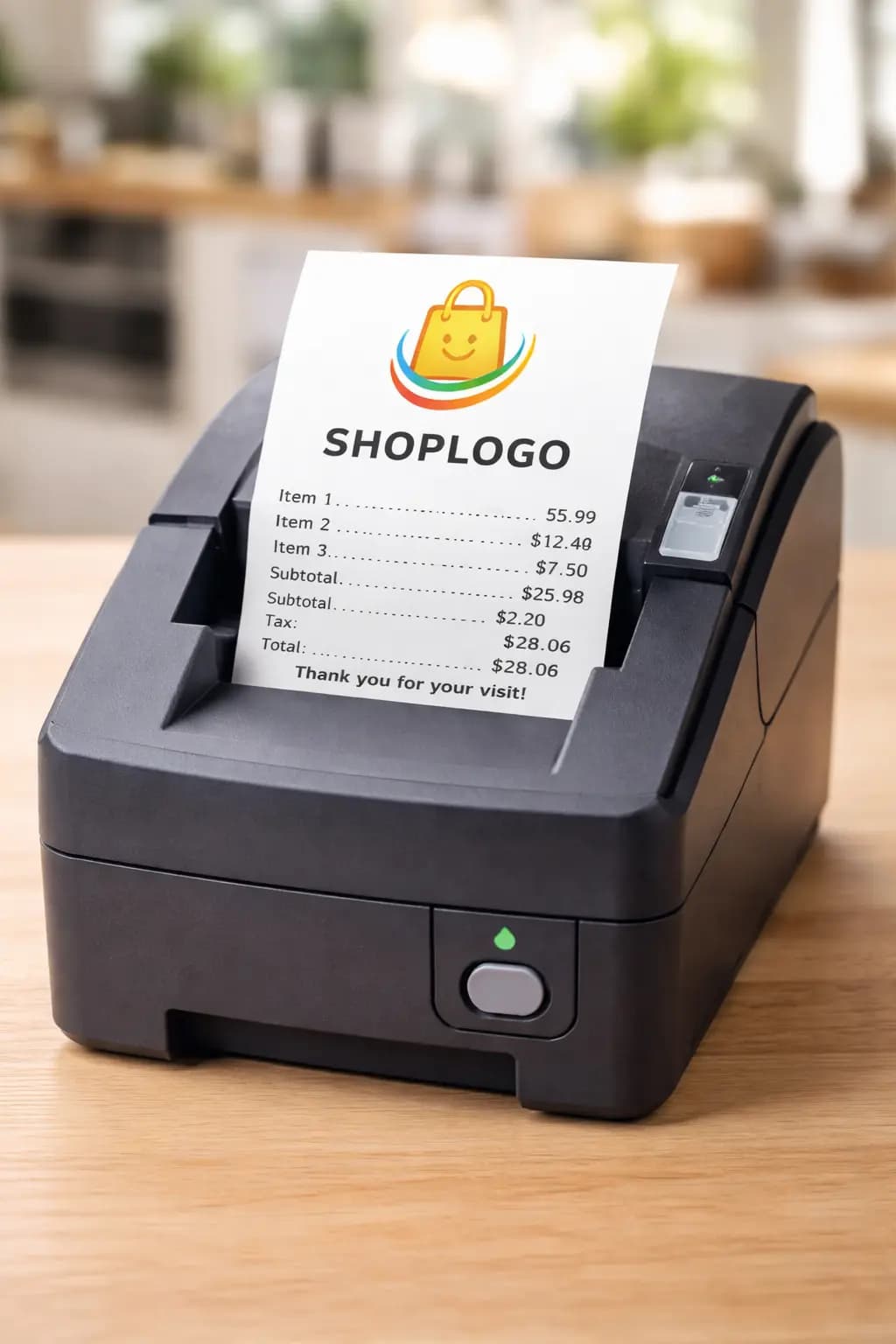
A receipt without a logo is a missed branding opportunity. Every transaction is a micro-interaction with your customer, and a clean logo at the top of each receipt reinforces trust, aids identification, and keeps your brand front-of-mind long after the purchase. In this guide, we'll walk through the entire process—from preparing your logo file to exporting a print-ready PDF—using the Receipt Maker.
Why Logos Matter on Receipts
Receipts serve three purposes beyond proof of payment: branding, trust, and identification. A logo handles all three at a glance. As research on logo psychology confirms, customers who see consistent branding across receipts, packaging, and signage are more likely to recall your business when they need your product or service again.
- Branding: Turns a disposable slip into a brand impression
- Trust: A professional-looking receipt signals a legitimate business
- Identification: Customers can instantly tell which store a receipt came from—useful for returns and expense reports
Preparing Your Logo File
A logo that looks great on your website can look terrible on a receipt if the file isn't prepared correctly. Thermal printers, PDF renderers, and on-screen previews all have different requirements. Hit all three by following these specs:
- Format: PNG with transparency enabled (no white box around the logo)
- Color space: RGB for digital receipts; convert to grayscale if targeting thermal printers only
- Resolution: 300–600 px wide — anything smaller pixelates, anything larger bloats file size
- File size: Keep it under 2 MB for fast uploads and snappy previews
- Edge cleanup: Remove stray pixels and anti-aliasing artifacts with a 1 px feather
- Background test: Preview your logo against both white and light-gray backgrounds before uploading
If transparency isn't an option (e.g., you only have a JPEG), match the background color to the receipt template—usually white—for a polished appearance.
Uploading Your Logo
Open the receipt generator and follow these steps:
- 1. Open the receipt editor and locate the "Logo" section in the left sidebar
- 2. Click "Upload Logo" and select your prepared PNG, JPG, or GIF file
- 3. Use the drag handles to resize the logo while maintaining its aspect ratio
- 4. Drag the logo to your preferred position—typically the upper third of the receipt
Placing your logo in the upper third of the receipt makes it the first thing a customer sees. That single placement decision is worth more than any other design tweak.
Placement Optimization
Centering is the default choice for a reason—it works with every receipt width. But centering alone isn't enough. You need consistent padding so the logo doesn't crowd the text below it.
- Center the logo horizontally with a minimum of 20 px white space on each side
- For 58 mm paper: use 8–10 px top/bottom padding
- For 80 mm paper: use 12–16 px top/bottom padding
- Size the logo at 50–70% of the receipt width for visual balance
- Use the preview feature to verify alignment before exporting
- Test on mobile view if customers will receive digital receipts on their phones
Display Customization
Sometimes a logo that looks perfect in your design tool needs adjustment for receipt paper or PDF output. Use the display sliders to fine-tune appearance:
- Brightness: Lower by 10–15% on white backgrounds to reduce glare; boost up to 20% on darker templates
- Contrast: Increase by 5–10% if the logo looks washed out in the preview
- Opacity: Set between 85–95% for subtle integration without overpowering transaction details
- Grayscale conversion: Toggle on if the receipt will be printed on a thermal printer, which only supports monochrome output
Troubleshooting Common Issues
Even with a well-prepared file, issues can crop up. Here are the most common problems and their fixes:
| Issue | Cause | Fix |
|---|---|---|
| Pixelation | Source image is too small | Re-export at a minimum of 300 px wide; convert from SVG for lossless scaling |
| Blurry edges | Excessive anti-aliasing or JPEG compression | Use PNG format and apply a 1 px sharpen filter before uploading |
| Color bleeding | Logo colors too saturated for the output medium | Reduce saturation by 10–20% and verify on both screen and print previews |
| White box around logo | Image has a white background instead of transparency | Re-export as PNG with a transparent background or use a background removal tool |
| Thermal print looks different from screen | Thermal printers are monochrome and lower resolution | Create a separate monochrome version—high contrast, no gradients, bold lines |
Exporting as PDF
Once your logo is placed and customized, export the receipt as a PDF for the sharpest output on both screen and paper. Before hitting export, run through this quick check:
- Zoom to 100% and verify the logo isn't pixelated
- Check that text below the logo isn't overlapping or too close
- Confirm the file size is reasonable (a single receipt PDF should be under 500 KB)
- Open the exported PDF on a different device to spot rendering issues
Preparation Checklist
Run through this list before uploading any logo:
- PNG format with transparency
- RGB color space
- 300–600 px width
- Under 2 MB file size
- Clean edges (no stray pixels)
- Tested against white and gray backgrounds
- Monochrome version ready (if using thermal printers)
Advanced Tips
Once you've nailed the basics, consider these techniques to take your receipt branding further:
- Create a dedicated monochrome logo variant for thermal printers—it prints crisper than an auto-converted color logo
- Add a subtle watermark version of your logo behind the transaction details for extra branding without cluttering the layout
- Place a smaller logo in the footer as a sign-off, paired with your website URL or social media handle
- Save your customized receipt as a template so every future receipt starts with the logo already in place
For more receipt customization options, explore our receipt templates for retail, restaurant, and grocery formats. You can also generate receipts for specific stores using our free receipt generator.