How to Choose a Receipt Maker: 9 Features That Actually Matter

Every receipt generator looks the same on its landing page: a template gallery, a live preview, a download button. The differences only surface later — when a bookkeeper rejects the PDF, when the logo prints as a grey smear, or when an accountant asks where the tax registration number is supposed to go.
A note on what this article is and is not. It is not a ranked comparison of named products, because a genuine one requires testing each tool over time and most published rankings are written by people with a stake in the outcome — including, obviously, us. What follows instead is the set of criteria we would use, and a scorecard you can run yourself against any tool including this one. The criteria are the useful part; the conclusion should be yours.
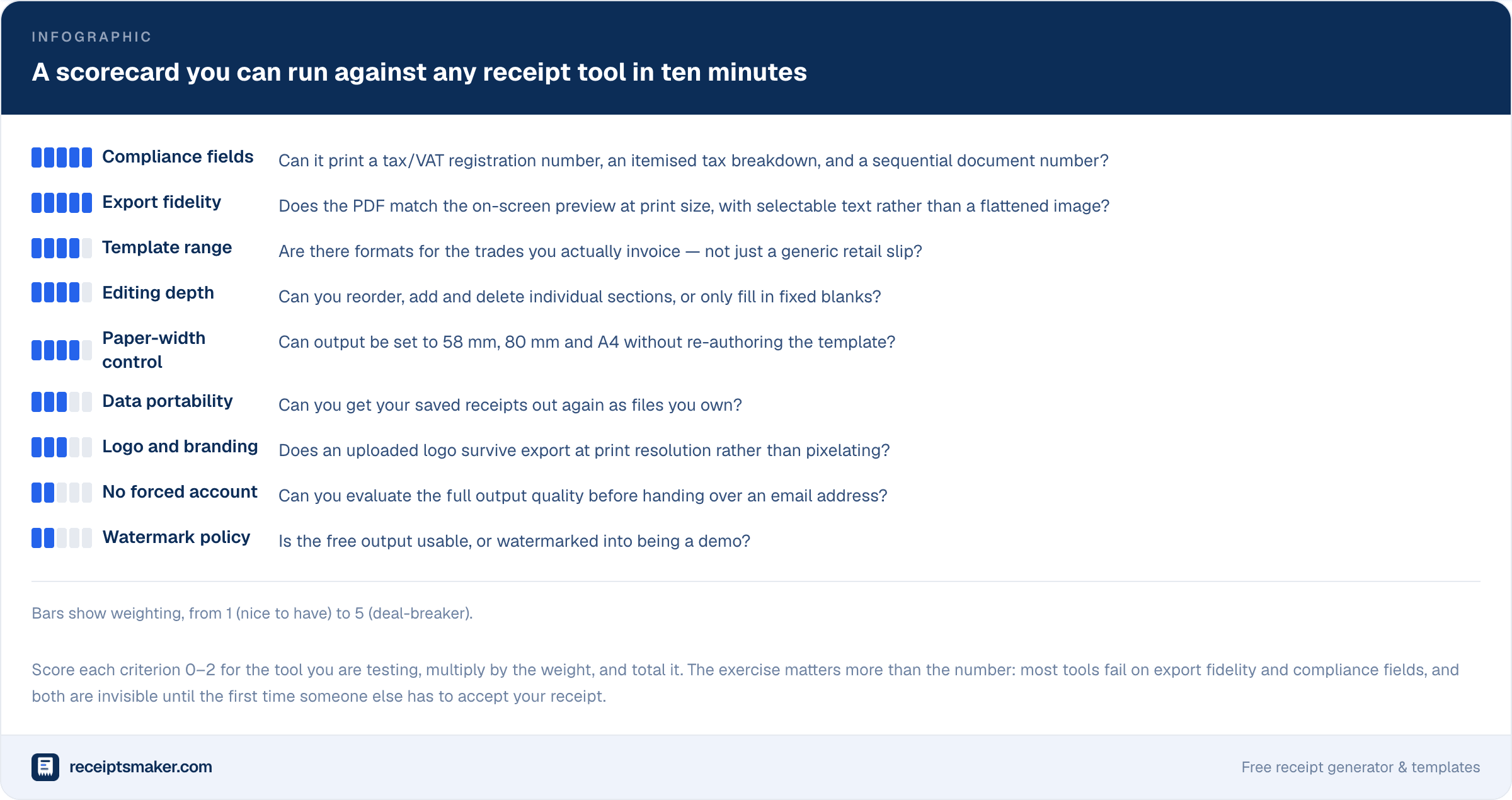
1. Compliance Fields — The Deal-Breaker Nobody Checks
This is the criterion that separates a receipt from a picture of a receipt, and it is almost never mentioned in marketing copy.
A receipt that will be accepted by a bookkeeper, a tax authority or a VAT-registered buyer has to carry three things many generators simply cannot produce: a tax or VAT registration number, an itemised tax breakdown showing the rate, the net and the tax separately, and a sequential document number.
The tax breakdown is the one that fails most often. A tool that prints only a gross total cannot produce a valid VAT receipt anywhere in the EU or UK, no matter how professional the output looks. Sequential numbering matters for the same reason auditors care about invoice sequences — it evidences a complete set of records, and gaps invite questions.
Test it in two minutes: create a receipt with two items at different tax rates and see whether the output shows each rate separately. If it collapses them into one figure, the tool is not suitable for business use. The full field list is in our guide to reading a receipt.
2. Export Fidelity — What You See Versus What You Get
The second deal-breaker, and the one that wastes the most time before it is discovered.
Many tools render a beautiful preview in the browser and export something noticeably worse: fonts substituted, spacing shifted, the whole receipt flattened into a low-resolution image inside a PDF wrapper. A flattened receipt cannot be searched, cannot have text copied out of it, and prints badly at anything above screen resolution.
Two checks tell you everything. Open the exported PDF and try to select the text — if you cannot, it is an image. Then zoom to 400%: real text stays crisp, a rasterised receipt turns to mush. Do both before you commit to a tool, because this is exactly the problem you discover at the moment you need to send something.
3. Paper Width Control
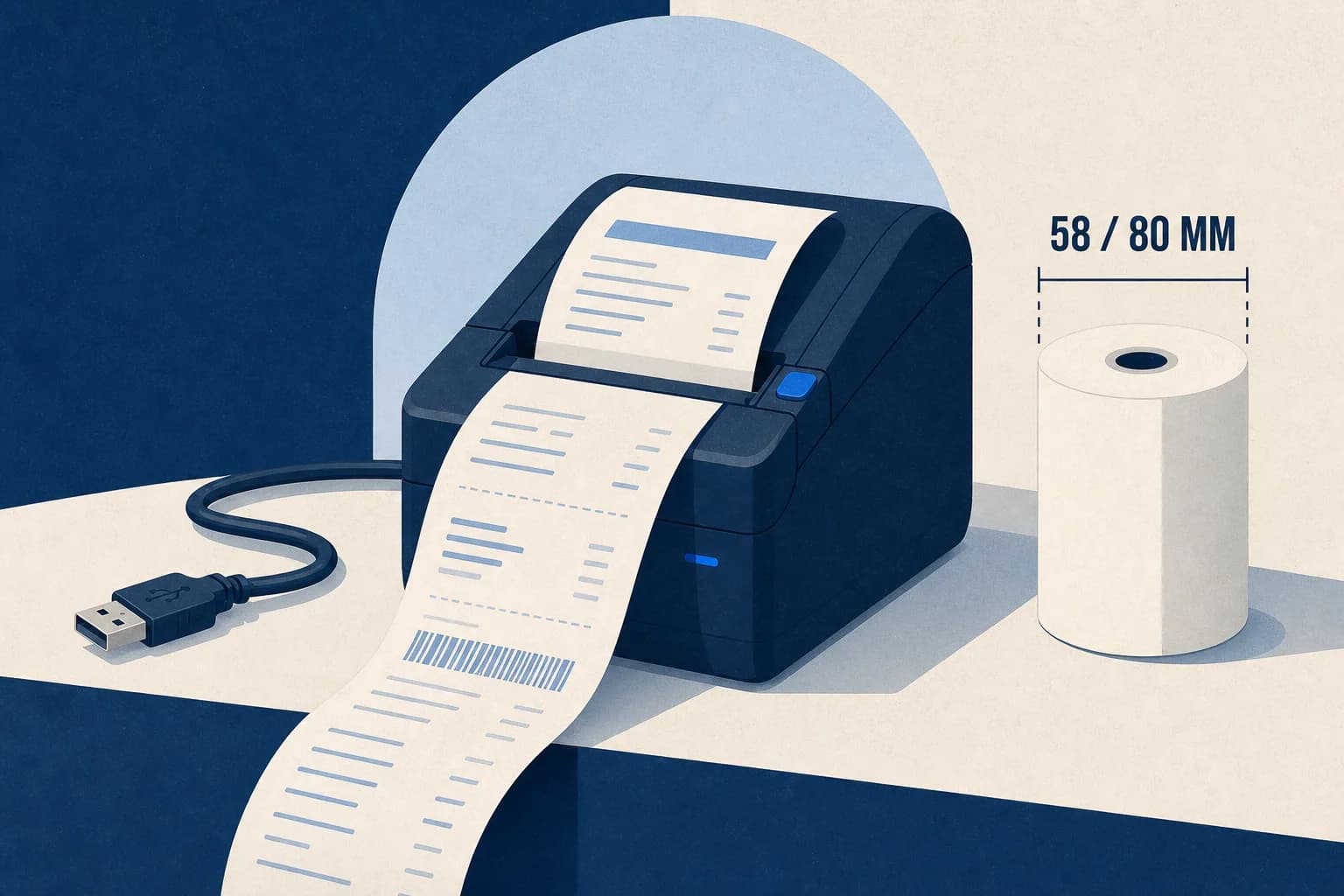
A receipt destined for a 58 mm thermal printer, an 80 mm printer, and an A4 sheet are three different documents, not one document at three sizes. Character counts per line differ, and a layout built for one wraps badly on another.
If you will ever print rather than email, check that the tool can target the width you actually use — and that switching width re-flows the layout rather than simply scaling it. The practical consequences of getting this wrong are covered in our thermal printer setup guide.
4. Template Range — For Your Trade, Not in Total
Template counts are the most heavily inflated number in this category. "Over 200 templates" usually means one layout in 200 colour variations.
The question that matters is narrower: does the tool have a format built for what you actually do? A taxi receipt needs pickup and drop-off fields and a fare breakdown. A hotel receipt needs nightly rate, occupancy tax and folio number. A service receipt needs labour and parts separated. These are structurally different documents, and a generic retail template padded with extra rows is a poor substitute.
Ignore the total. Find your trade in the library, or accept that you will be doing manual work on every receipt.
5. Editing Depth
There is a real difference between a form and an editor. A form lets you fill fixed blanks; an editor lets you add, remove and reorder the sections of the document itself.
That matters as soon as reality departs from the template — a deposit line, a second tax rate, a customer reference your client insists on, a discount that has to appear before tax rather than after. If sections cannot be reordered or added, every one of those becomes a compromise. Our editor treats the receipt as a stack of sections for exactly this reason.
6. Logo and Branding That Survives Export
Most tools accept a logo upload. Fewer handle it properly at print resolution.
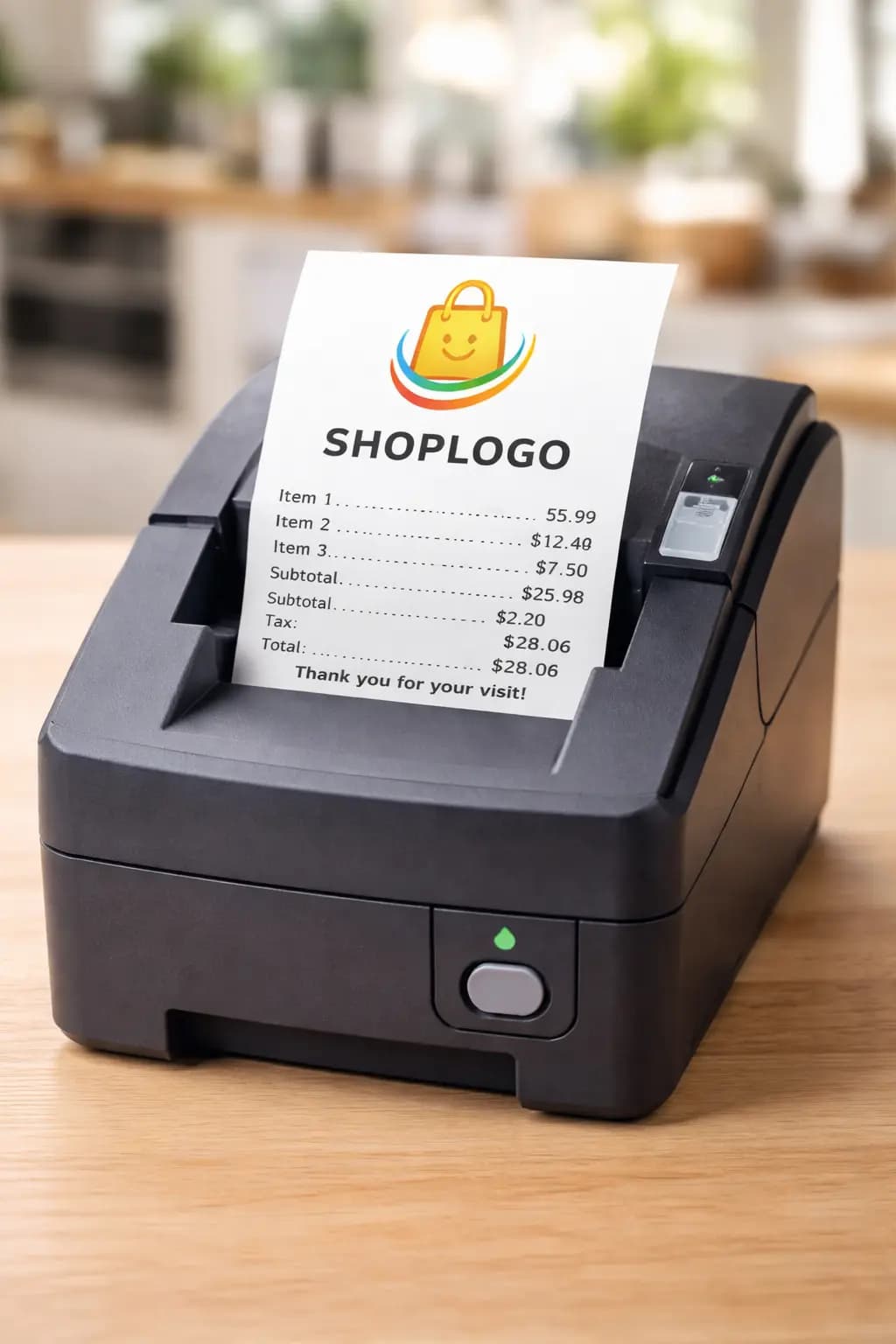
The common failure is downscaling the upload for the preview and then exporting that downscaled copy, so a crisp logo on screen prints as a pixelated block. Upload your real logo, export, and zoom in. Transparent PNG handling is worth checking at the same time — a logo that gains a white box on a tinted background is a giveaway. We cover file preparation in how to add logos to custom receipts.
7. Data Portability
If a tool saves your receipts, ask what happens when you stop using it. Records you can only view inside someone else’s web application are records you do not fully control — and retention obligations run for years, as our retention guide sets out.
The safe position is simple: whatever the tool stores, keep your own copies of the exported files somewhere you control. Convenience features are welcome; single points of failure for compliance records are not.
8 and 9. Account Walls and Watermarks
These two are about honesty rather than capability, and they are quick to assess.
A tool that requires an account before showing you the export quality is asking you to commit before you can evaluate the thing that matters most. A tool that watermarks free output is offering a demonstration, not a free tier — which is legitimate, but you should know which you are looking at before investing time in a document you cannot use.
Neither is disqualifying. Both should be visible before you start, not discovered at the download step.
Running the Test in Ten Minutes
The whole assessment fits in one sitting, and it is worth doing before committing rather than after.
- Build one realistic receipt — your real trade, two items at different tax rates, your real logo.
- Export it as PDF. Try to select the text. Zoom to 400%.
- Check the tax block shows each rate, net and tax separately.
- Look for the registration number field and a sequential document number.
- Switch the paper width and see whether the layout re-flows or merely scales.
- Print one copy on whatever you actually print on.
Six steps. Most tools fail at step two or step three, and both failures are invisible from the landing page.
When You Do Not Need One of These at All
Worth saying plainly. If you issue more than a handful of receipts a day, or you need stock control, or you take card payments in person, you do not want a receipt generator — you want a point-of-sale system that produces receipts as a by-product of processing the sale. Generators are for documenting transactions, not processing them.
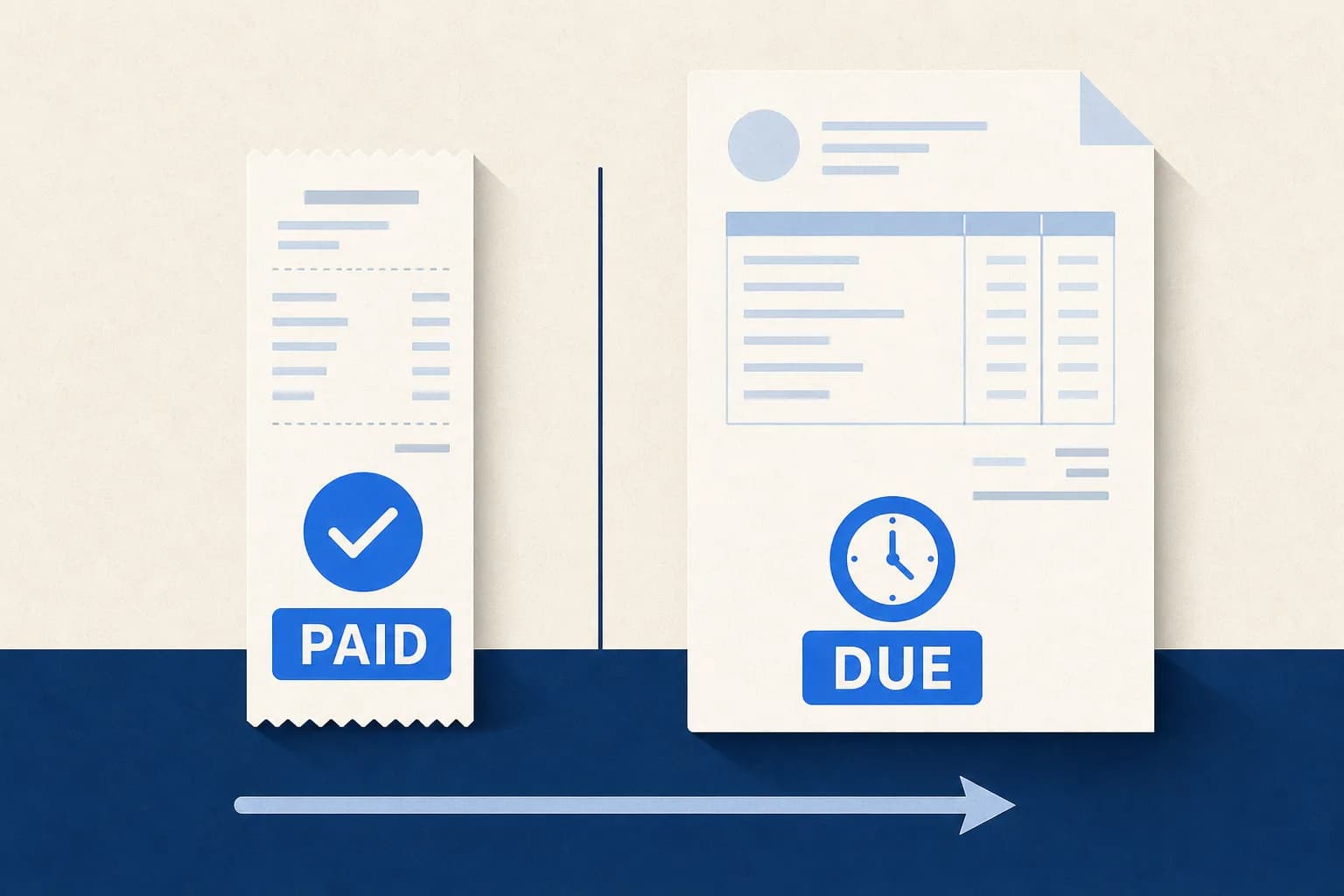
And if you invoice on credit terms rather than taking payment on the spot, an invoicing tool is the better fit, for reasons set out in receipt vs invoice. A receipt generator is the right tool for occasional receipts, cash payments, replacing documentation for a real transaction, and trades where the paperwork is the exception rather than the transaction flow.
Conclusion
The criteria that decide whether a receipt tool is any good are not the ones on the landing page. Compliance fields and export fidelity carry more weight than every cosmetic feature combined, and both can be tested in about two minutes each.
Run the six-step test against whichever tools you are considering — this one included. If our receipt generator or template library fails a step for your use case, that is worth knowing before you rely on it, not after.